


I manage my todos from my iPhone and Macbook from an app called Todoist. Disclaimer; the link is an referral link, we'll both get Todoist premium if you decide to use my link. 🙏
You might be wondering, how the hell did I get my todos from Todoist on my website so neatly? Well, it's MUCH easier then you might think. No database and no back-end. New todos will automatically be shown on your webpage whenever you mark a todo as done!
You do require some basics.
- An existing website
- Some vanilla Javascript knowledge.
- A Todoist account obviously.
- A Google account since we're gonna transfer all our todos to a Google sheet. 🤫
- Finally, an IFTTT account.
If you already know what IFTTT is, great, skip the next chapter. If not, no worries read on... It's super easy, I promise. 👀
WTF is IFTTT?
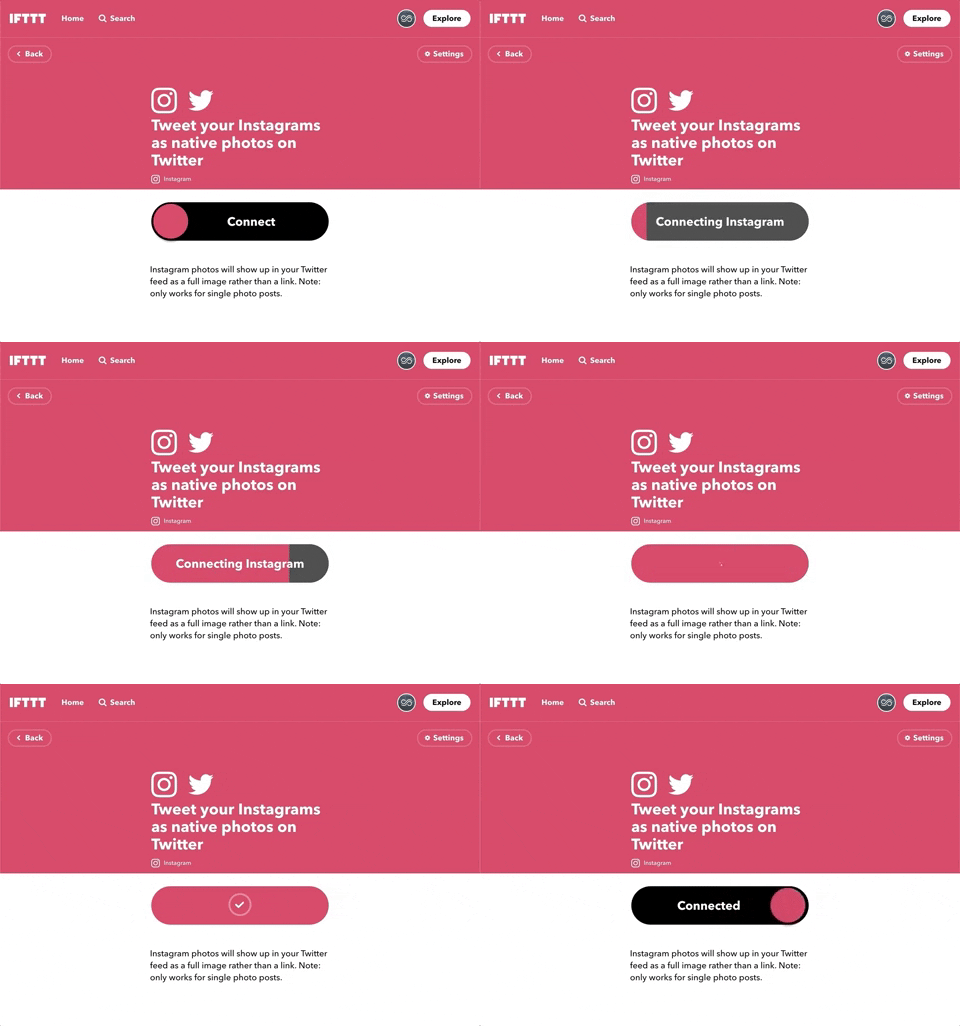
In short, IFTTT is a no-code solution to connect platforms and services such as Todoist, Google, Twitter, Instagram and so forth. You can do this by using IFTTT's so-called applets. For example, want to Tweet your Instagrams as native photos on Twitter automatically whenever you post something new on IG? There's an applet for that.
In most cases, it's as easy as clicking a handful of buttons. You'll have to give IFTTT permission to access your accounts via the interface of the platform you want to give access to.
If you've given all the permissions, it's as easy as...
Connect Todoist with Google sheets
- Setup the applet that is responsible for linking up your Todoist account with Google sheets via this link.
Follow the steps and keep the configuration as-is unless you wanna customize some folder routes within Google drive. 2. Test if the connection works by creating a new todo via the Todoist app and mark the newly created todo as completed. 3. Wait a minute and check if IFTTT automatically made the sheet which you can find in your Google drive.
Create the JSON feed with Google sheets
- Open the sheet, it should look something like this:

- Save the unique sheet ID which you can find in the url.
Find yours where {UNIQUE_ID} is located in the following:
https://docs.google.com/spreadsheets/d/{UNIQUE_ID}/edit#gid=0
- Add a new row on top for the names of the fields. The JSON feed which we will generate later on will use these column names.

- After you've added the column names, publish the sheet to the web by clicking "Publish to web" from the File menu.
Keep the settings as-is. 5. Check if you can access your newly created JSON feed via the following link. Don't forget to replace {UNIQUE_ID} with your sheet ID.
https://spreadsheets.google.com/feeds/list/{UNIQUE_ID}/od6/public/values?alt=json
- Awesome, you're basically done now, g00d jub. You can fetch the todo list in your front-end with the URL from the last step. 🎉
Fetch the todos in your front-end
If you don't know how to fetch and process JSON data from an API, I highly suggest reading about Axios and Promises.
I've included my Javascript code down below. Make sure to replace YOUR_SHEET_ID_HERE with your unique ID.
I loop through the todos and categorize them by date, putting them into arrays. Each array represents a different day. The first array is called "Today" for obvious reasons. The following arrays will be called "March 23, 2020", "March 24, 2020", and so forth.
const axios = require('axios');

const sheetID = "YOUR_SHEET_ID_HERE";
const googleSheetUrl = `https://spreadsheets.google.com/feeds/list/${sheetID}/od6/public/values?alt=json`;

module.exports = () => {
    return new Promise((resolve, reject) => {
        axios.get(googleSheetUrl)
            .then(response => {
                const monthNames = ["January", "February", "March", "April", "May", "June",
                    "July", "August", "September", "October", "November", "December"
                ];
                const today = new Date();
                const dd = String(today.getDate());
                const mm = String(today.getMonth());
                const yyyy = today.getFullYear();

                const todayStr = monthNames[mm] + ' ' + dd + ', ' + yyyy

                let data = {
                    'Today': []
                };
                response.data.feed.entry.forEach(item => {
                    const date = item.gsx$date.$t.substring(0, item.gsx$date.$t.length - 11)

                    if (date === todayStr) {
                        data['Today'].unshift({
                            "name": item.gsx$name.$t,
                            "date": item.gsx$date.$t
                        })
                    } else {
                        if (!data[date]) data[date] = []
                        data[date].unshift({
                            "name": item.gsx$name.$t,
                            "date": item.gsx$date.$t
                        })
                    }
                });
                resolve(data);
            })
            .catch(error => {
                reject(error);
            });
    })
}
Here is an example of a possible return value:
{
    "Today": [
        {
            "name":"Learn Eleventy",
            "date":"March 24, 2020 at 04:22PM"
        },
        {
            "name":"Brainstorm hard",
            "date":"March 24, 2020 at 03:57PM"
        }
    ],
    "March 23, 2020": [
        {
            "name":"My first task",
            "date":"March 23, 2020 at 03:44PM"
        }
    ]
}
Display the todos
Create a double loop if you're ready to display the data. Loop through the dates and the associated todos.
Here's an idea of a non-working example of what you can do.
// for item in sheet
    <h2>
        // item[0]
    </h2>
    <ul class="todos">
        // for todo in item[1]
        <li>
            <div class="todo">
                <input class="todo-check" type="checkbox" checked disabled>
                <div>
                    <div class="todo-name">
                        // todo.name
                    </div>
                    <div class="todo-date">
                        // todo.date
                    </div>
                </div>
            </div>
        </li>
        // endfor
    </ul>
// endfor
Got any questions? Reach out to me via Twitter.
 Write less Javascript